Hostel Warden
Hostel Warden module deals with student accommodation
It’s from this module where you can view or delete hostel information such as
existing hostels, hostel rooms, room beds, and hostel policies
You can also create new hostels, hostel rooms, and room beds from this module
Hostel room allocations and reservations are also made from this module
You are also able to generate important hostel reports such as Occupancy, Reservation, Allocation… etc
Hostels
Follow the steps below to view/amend existing hostels or create new ones
-
Follow
Steps 1-3to view a list of all the existing hostels -
To search for specific hostel(s), specify the Search By criteria (
Step 4), type the Search value (Step 5) and click the magnifying lens (Step 3) to display the records

-
To create a new hostel, follow (
Steps 1-3) as shown below

-
After
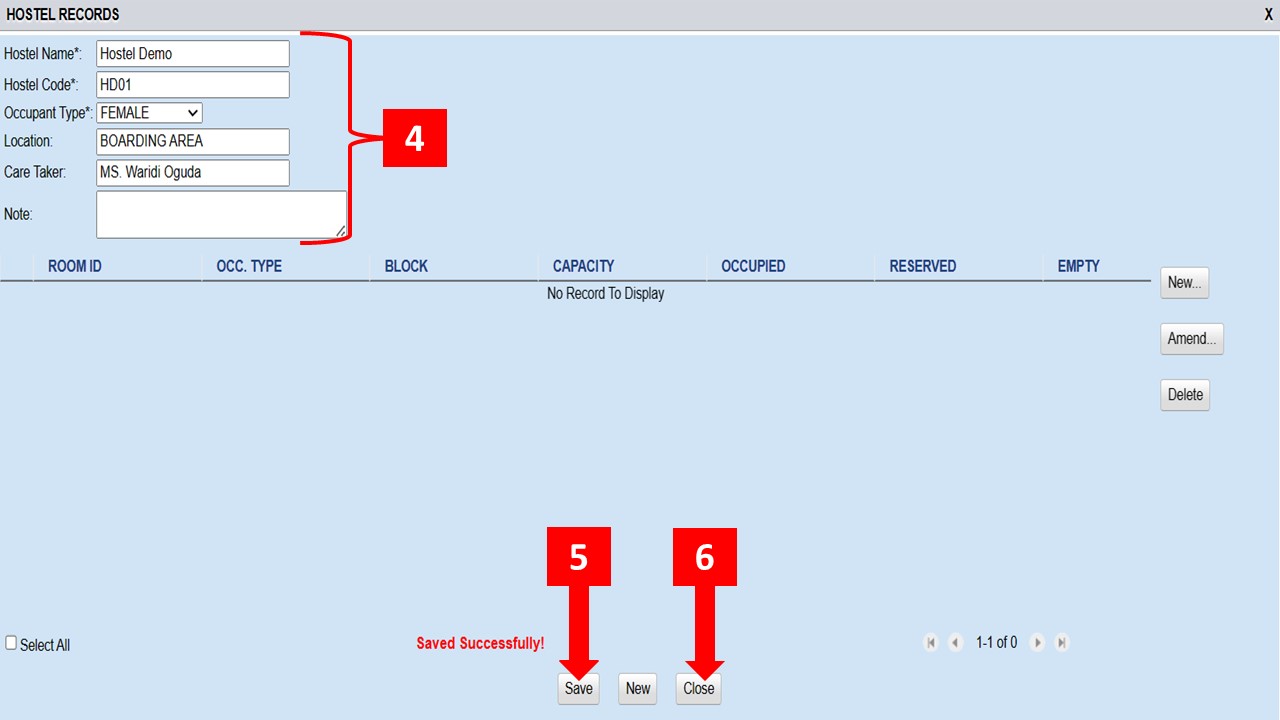
Step 3the window shown below appears -
Enter all the required hostel records as shown in
Step 4below -
After filling in the details, Save (
Step 5) and Close (Step 6) the window
Hostel Rooms
To add room(s) to the hostel you’ve just created, follow the steps shown below
-
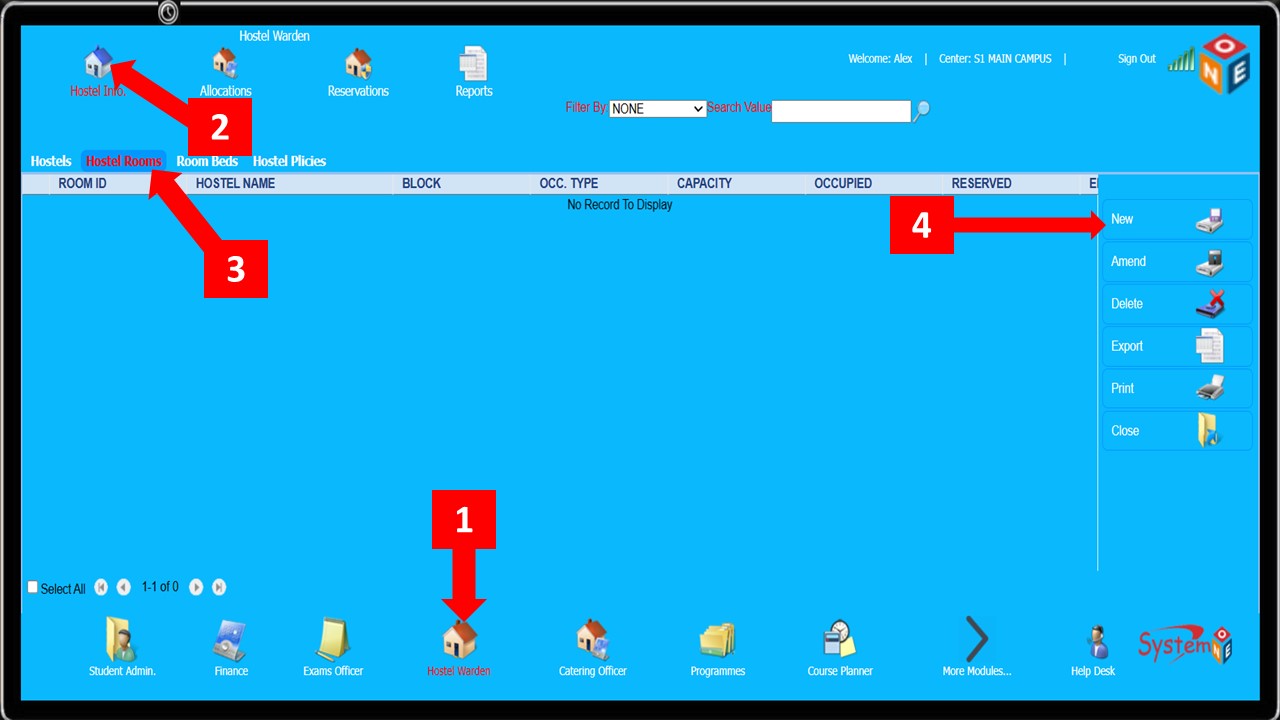
Follow
Steps 1-4to maneuver toHostel Room Records
-
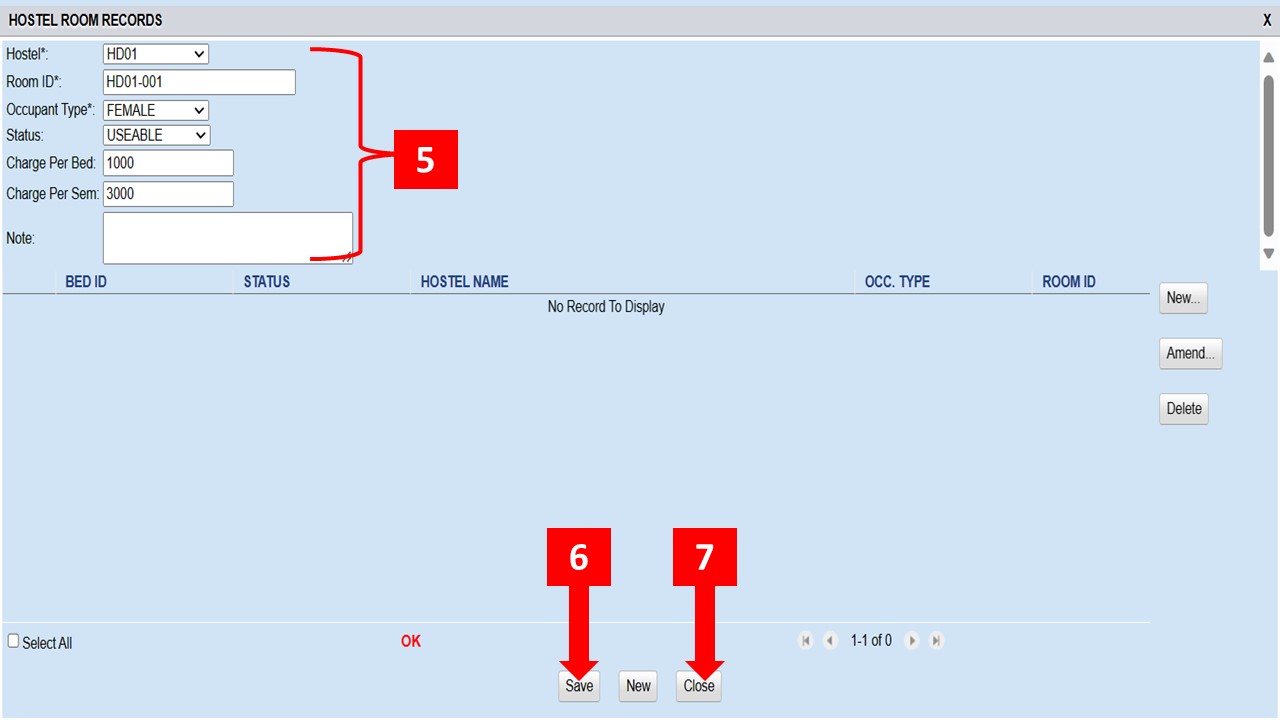
On the
Hostel Room Recordspage shown below, fill in the relevant room details as shown inStep 5 -
After filling in the details, Save (
Step 6) and Close the window(Step 7)
Room Beds
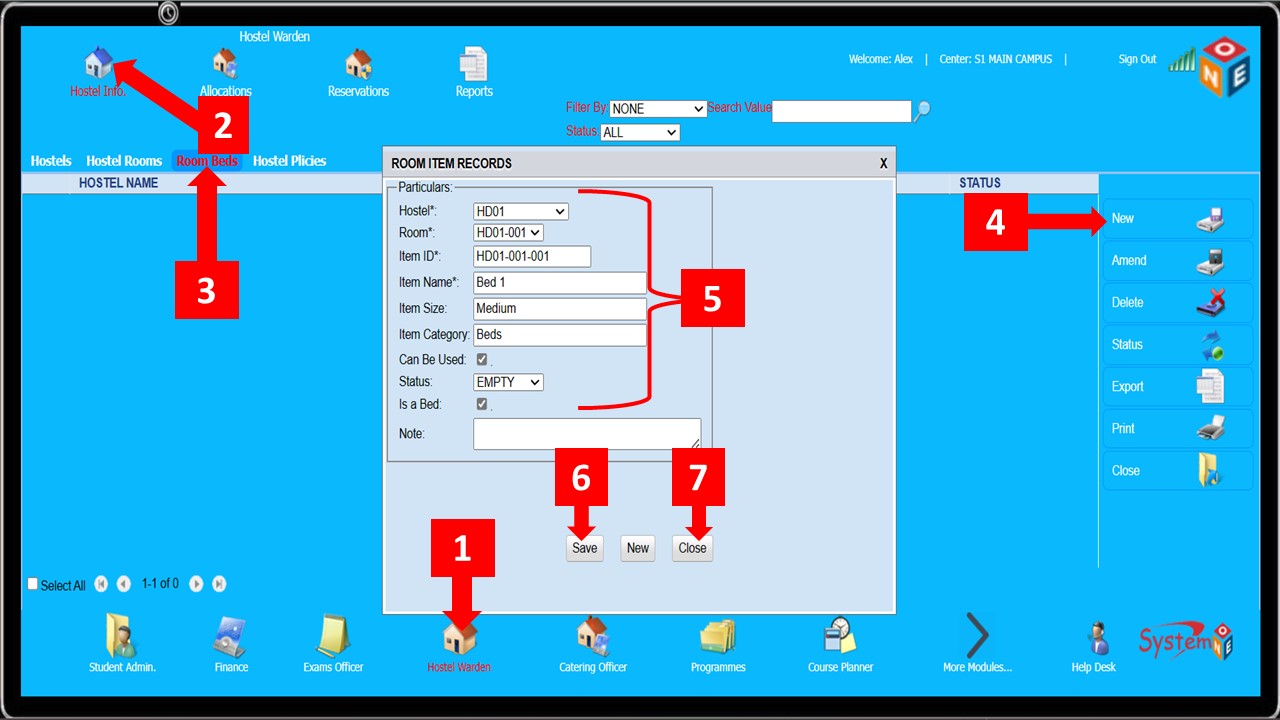
The steps below illustrate how to add beds to the hostel rooms
-
After
Steps 1-4the smallRoom Items Recordwindow appears as illustrated below -
On the
Room Items Recordwindow, fill in the bed particulars as shown inStep 5below -
Save and Close the
Room Items Recordwindow as shown inSteps 6 & 7
Hostel Policies
Comming Soon
Beds Allocations
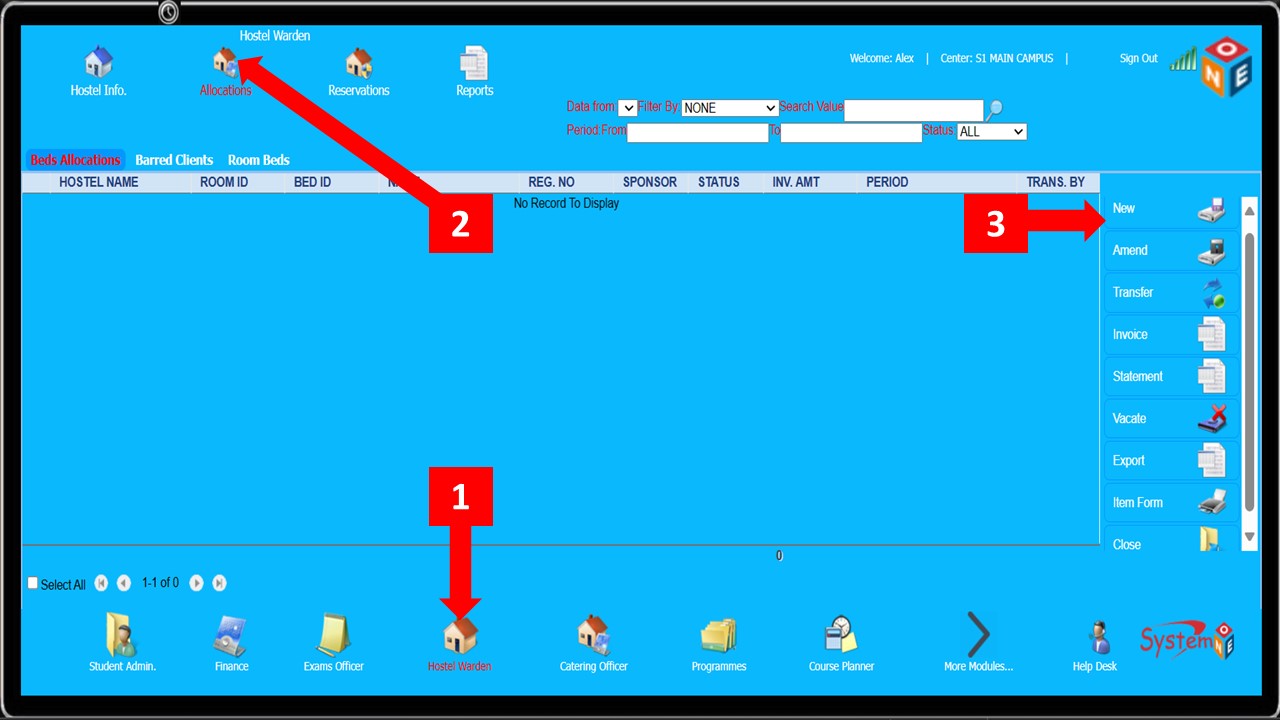
Follow the steps below to allocate beds to students
-
Steps 1-3lead you to theApplication Detailswindow
-
On the
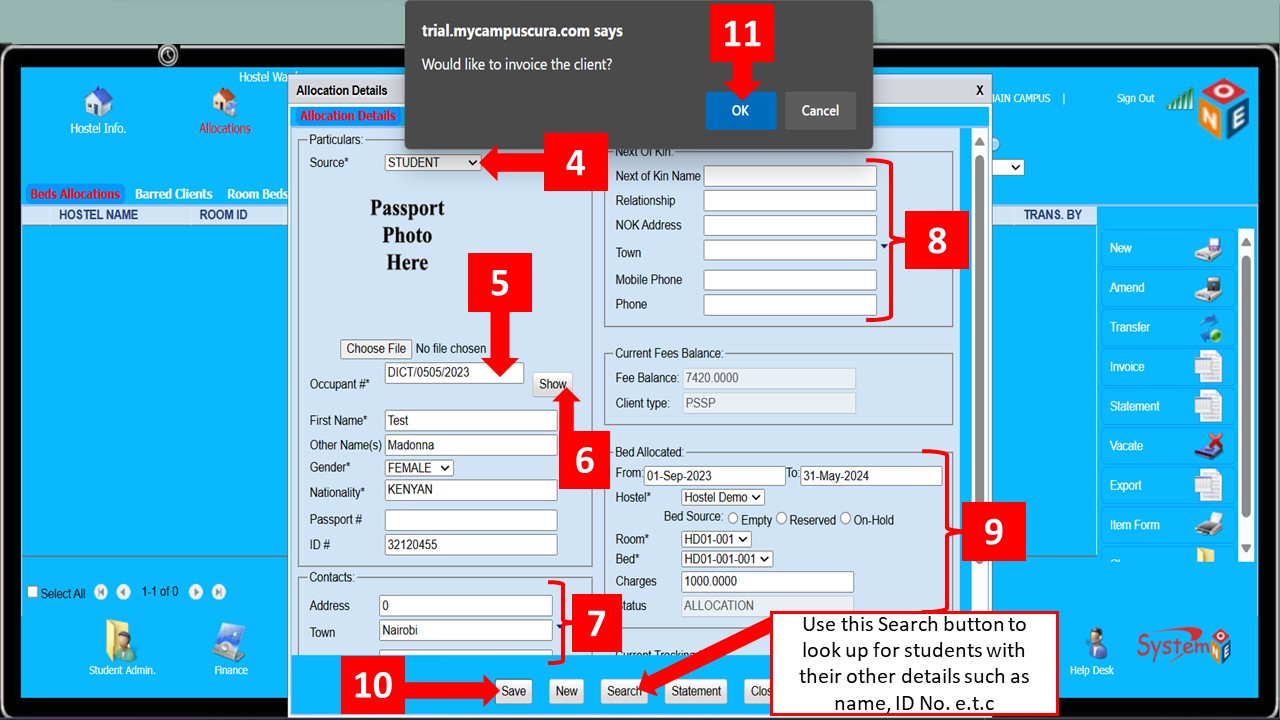
Application Detailswindow, select the Source (whether from the list of all students, reservations, or any other source) (Step 4) -
Enter the student’s admission number as shown in
Step 5and click theShowbutton (Step 6) to display their details -
Alternatively, you can use the
Searchbutton indicated at the bottom of the window. The button leads you to a student search window from which you can search for students with their other details such as Name and ID Number -
After the student’s details have appeared on the screen, enter their contact details
(
Step 7) and their next of kin details (Step 8) if applicable -
Enter the Bed Allocated details as shown in
Step 9and click theSavebutton (Step 10) -
After saving, a pop-up enquiring whether to invoice the client appears, click Ok (
Step 11) and you will have successfully allocated the bed to the student
Barred Clients
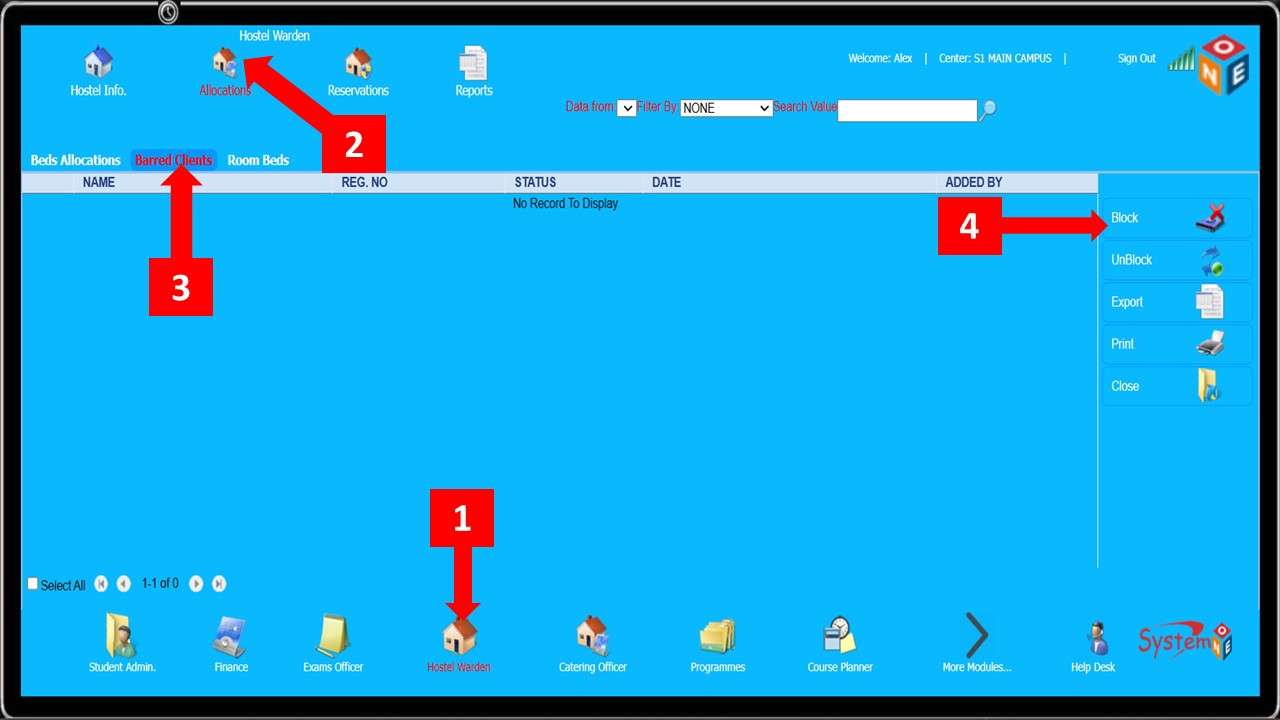
Here, you are able to block/bar students from booking hostels for various reasons
- You’ll also be able to unblock students who’d been blocked and generate a list of blocked student(s)
-
Follow
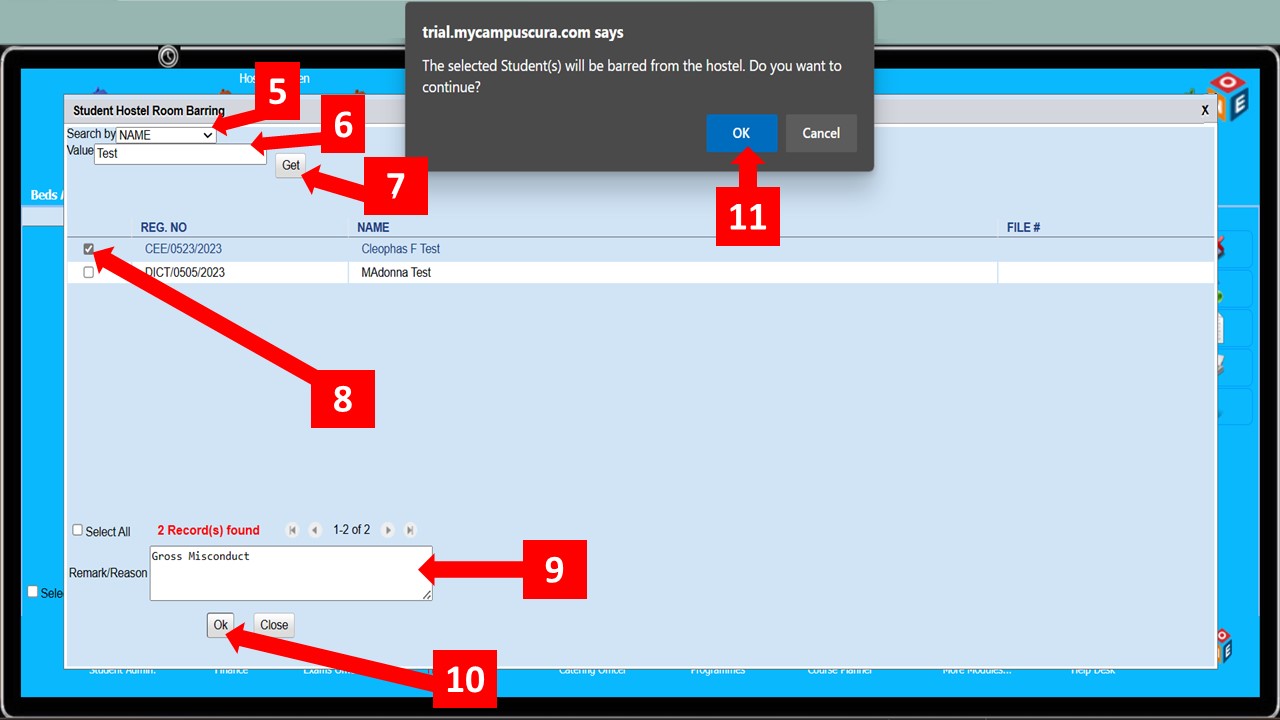
Steps 1-4to block a student from booking an hostel
-
After
Step 4, you’ll be led to theStudent Hostel Room Barringwindow -
Specify the Search By criteria (
Step 5) and enter the Search Value (Step 6) -
Click the
Getbutton shown inStep 7to search for the student and select the relevant one from the list that appears (Step 8) -
Enter the reason/remark for barring the student (
Step 9) and clickOk(Step 10) -
Click
Ok(Step 11) on the pop-up that appears on the screen to confirm that the student has been barred
- Follow the steps shown below to unblock a student and enable them to access hostel services
-
Follow
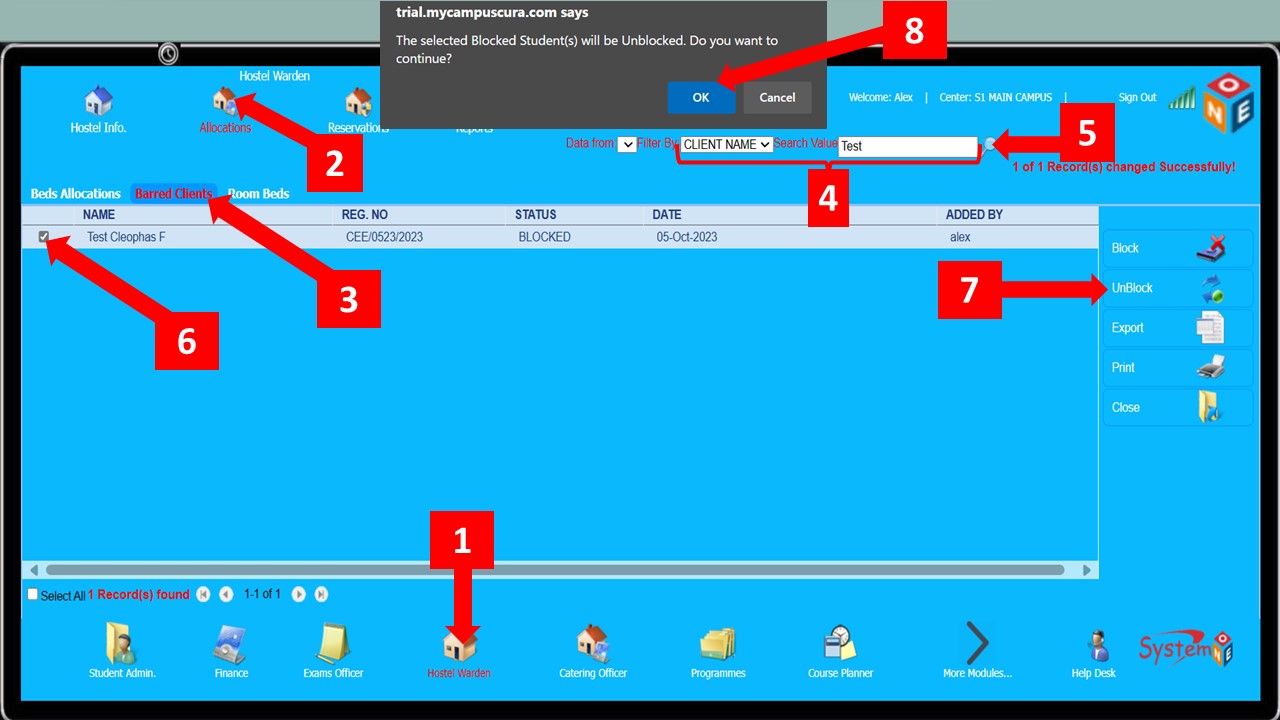
Steps 1-3to maneuver toBarred Clients -
Specify the Search By criteria, enter the Search By value (
Step 4) and click the magnifying lens inStep 5to display the barred/blocked client (The Search Value inStep 4e.g.; Name/Adm No. should be that of a blocked/barred student) -
Select the student on the list that appears (
Step 6) and click Unblock (Step 7) -
Click
Ok(Step 8) on the pop-up that appears on the screen to confirm that the student has been unbarred
- To access a list of the barred/blocked students, follow the steps shown below
-
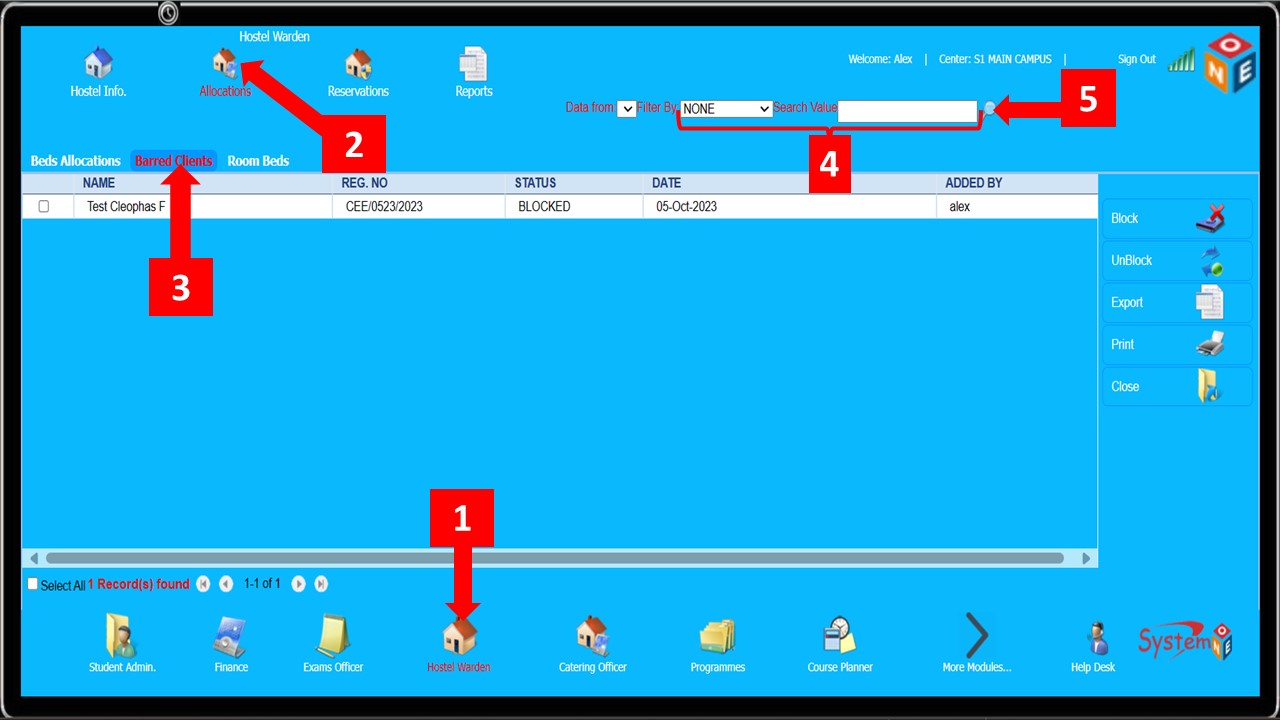
Follow
Step 1, 2, 3 & 5(SkipStep 4) to view a list of all the barred/blocked students - To search for a specific student or a specific range of students, follow all the steps as indicated below
Room Beds
Refer to Room Beds from Hostel Info.
Beds Reservations
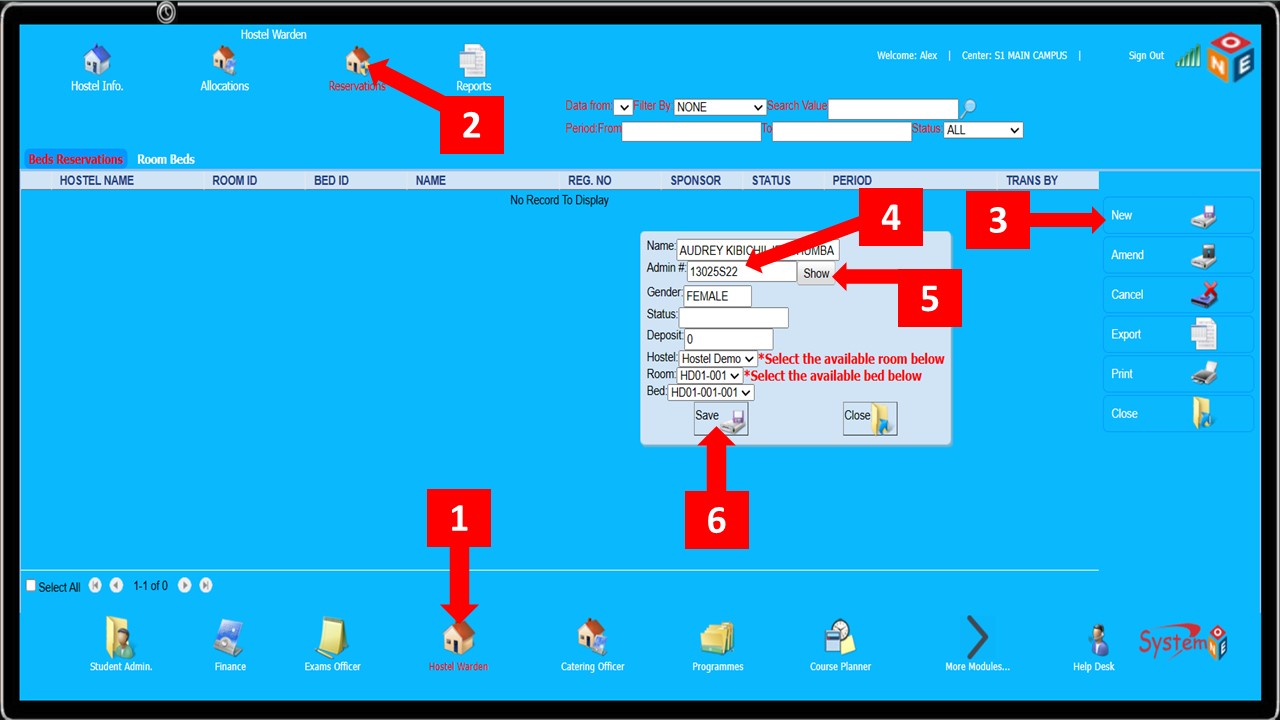
Follow the process shown below to reserve a bed for a student NB: For this to work, the student must be registered for the current session. Any other specified conditions must also be met, like the amount of fees that must be paid before a student can book/reserve a hostel
Room Beds
Refer to Room Beds from Hostel Info.
Reports
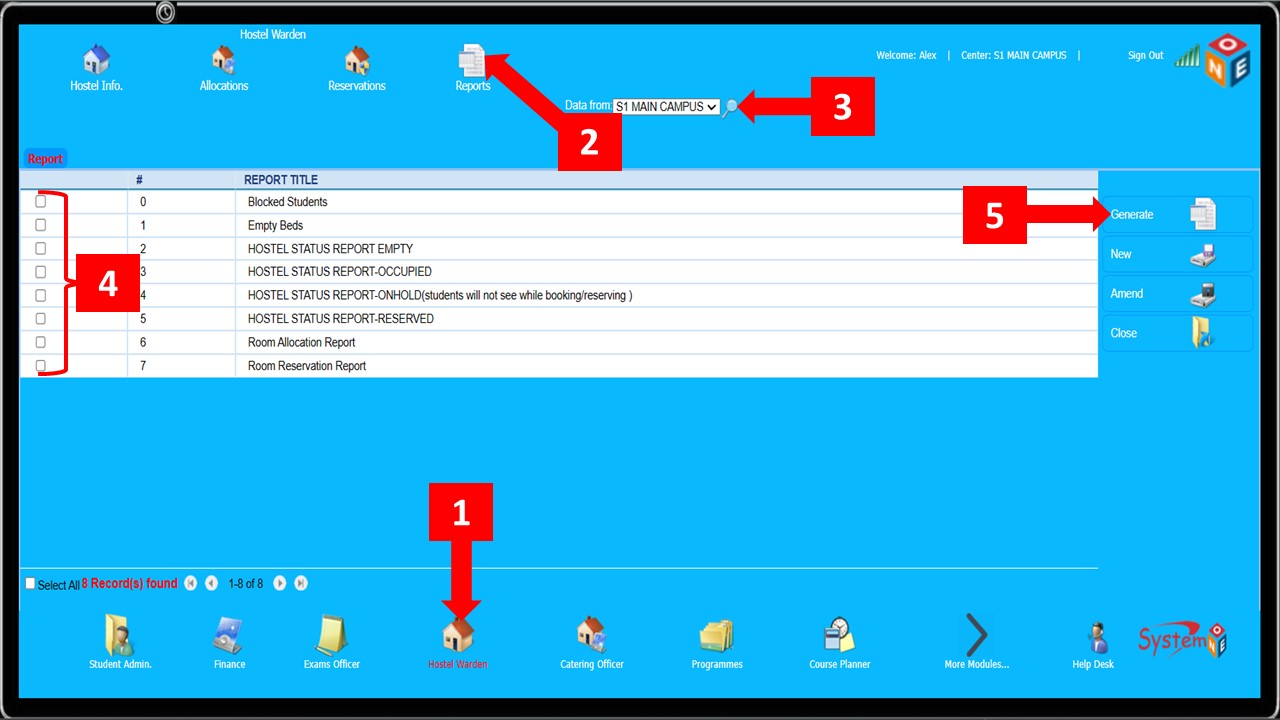
Follow the steps below to generate any hostel-related report(s)
-
Follow
Steps 1 & 2to maneuver to reports -
Click the magnifying lens shown in
Step 3to display a list of all the available reports -
Select the report you would like to generate (one report at a time) as shown in
Step 4below -
After selecting the report, click Generate (
Step 5) -
For some of the reports, you might be required to select extra details like the Department,
Session Year, Programme… etc. Select/fill in the relevant details and click the
Generatebutton at the bottom of the Report Generation window
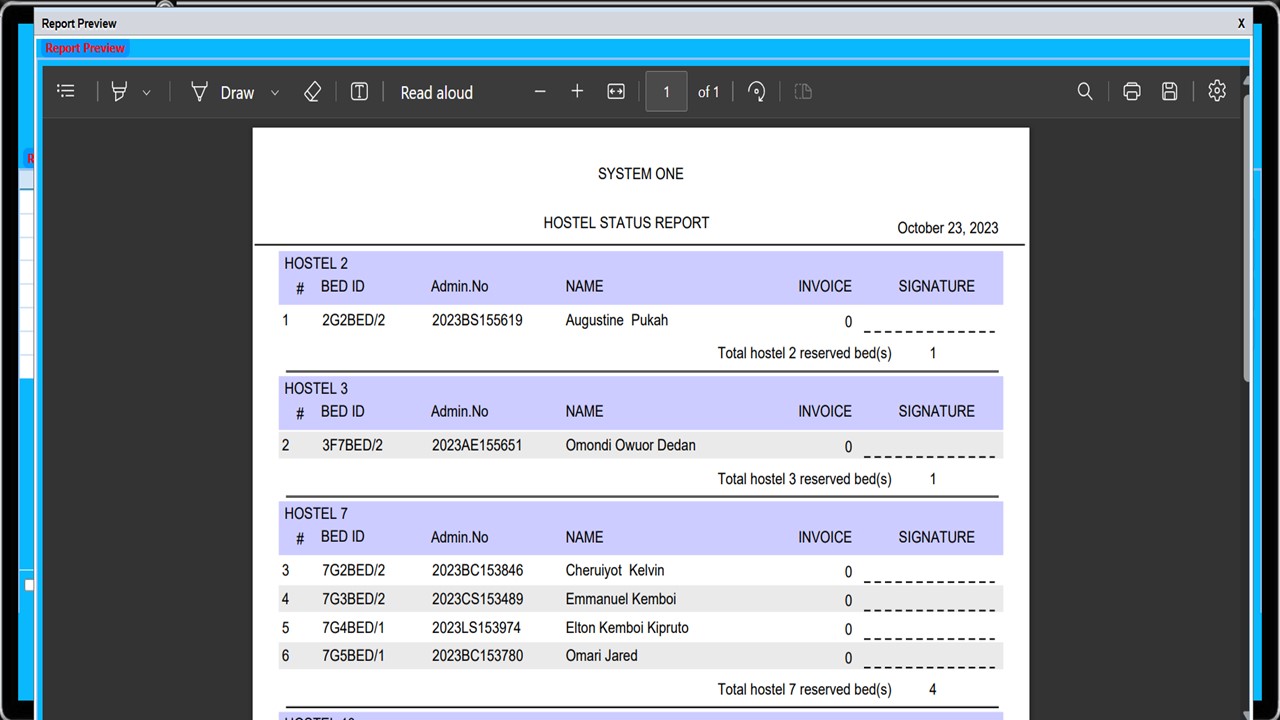
- The figure below is a representation of the Hostel Status(Reserved) report